You have some text in a different file, and you want to copy it to your new document, but when you paste it, it screws up. Either the formatting is wacky, or other things go on.
I was working on my resume this morning, and I had a graphic line at the top by my name. After listening to a class given by Dirk Spencer, author of Resume Psychology, where he stated that most of the job boards will treat anything in a text box or something similar as a graphic and don’t do it.
Well, I tried selecting the line, I tried copying and pasting the text before and after the line, and everything I pasted, that blasted line would come over into the new document. Grumble, grumble grumble.
Starting in 2003, Word gave you choices when you pasted text into a document. You would see a clipboard with a drop down arrow. If you clicked the arrow you’d see these choices

· Keep Source Formatting: Keep it how it looked in the old document, including graphics and spacing around the text
· Match Destination Formatting: Use my current styles and choices
· Keep Text Only: Get rid of anything that isn’t just the text.
In version 2010, it looks slightly different.

Now the choices are the three icons, Keep Source Formatting, Merge Formatting (same as the destination formatting from the previous versions) and Text only.
By choosing text only, I was able to get rid of that blasted line.
Paste Special
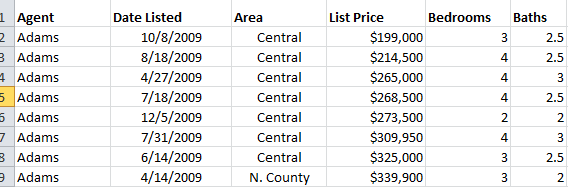
Paste special is really good when you need to put part of an Excel spreadsheet into a Word document.
You could do just a regular paste, but if you need to update the information

Notice how many more options you’ve gained.
Your first two haven’t changed, as they are:
· Keep Source Formatting
· Merge formatting
And the table from Excel is converted to a Word table in both cases, and is editable. Any changes you make to the data in the Word document won’t be sent back to Excel and vice versa.
· Link and Keep Source Formatting
· Link and Keep Destination formatting
This option establishes a link between the two files, so if this was a monthly report, you could change the numbers in Excel, and they would show up changed in the Word document.
The picture icon would insert the Excel data in as a picture, so no one would be able to edit the data.
The last one is the text only. Word inserts the data without the table format, and you can edit the data, and there’s no formatting.
In earlier versions of Paste Special, it would give you text, link or embed the text. Text and linked you know, but Embed is new. Embed was really good when you need to put a copy of the Excel file into the Word document. It was good when you were going to separate the Word and Excel files.
One word of warning on linked files. The receiving program need to always know where the source document is (in our case Word is the receiver and Excel is the source). If you move the source, then you will have to tell the receiver where it went.
Good luck and let me know if you have any questions.
Lexi